
Artificial Intelligence
ChatGPT Now Lets You Lock Chats: How The New PIN And Face ID Feature Works
Share
TL;DR
-
OpenAI began rolling out Locked Chats on October 20, 2026, across Free, Go, Plus, Pro, Business, Enterprise, and Edu plans.
-
Lock an eligible conversation from its three-dot menu, then create or enter a four-digit account PIN.
-
Find protected conversations under Projects > Locked chats; supported phones also offer Face ID, Touch ID, or device unlock.
-
Protected chats stay out of regular history and search, but locking does not change data retention or training settings.
-
Locked Chats and Temporary Chats serve different purposes: one saves conversations behind a lock; the other keeps them out of history.
-
Never casually reset a forgotten PIN: the reset permanently deletes protected chats and associated content.
Introduction
What's the stupidest thing you've ever searched for? Like something you felt you should know, but had to actually look up? And we're not talking about spellings; those happen, but concepts or ideas?
I'll share one: I once searched "Which day does Good Friday come on?" Did the same with Easter Sunday.
Still, those were Google searches that one can simply hide by closing the tab, or in extreme shame, deleting search history.
Nowadays, we use ChatGPT for searches, and we're not too OCD as yet to clear out those chats, because let's face it: ain't nobody got time for that.
Aside from stupidity, we also use ChatGPT for deep talks, personal problems, health-related issues, and other conversations we don't want to have with other people. Especially now since artificial intelligence (AI) can converse like a normal person.
Also, we're logged into so many devices in different places; it's tough to guarantee someone won't read our personal chats, accidentally or intentionally.
ChatGPT's maker, OpenAI, understands this problem, which is why it's introducing a new feature that allows people to lock chats.
So, how can you lock and unlock your ChatGPT chats, and what does this extra layer of privacy actually protect? Look and unlock the answer below!
What Is ChatGPT's New Locked Chats Feature?
OpenAI introduced the locked chats feature on October 20, 2026, to give users more control over who can casually view saved conversations.
The ChatGPT Locked Chats feature moves chosen threads out of your usual history, pinned list, and regular search results. They remain in your account, under Projects > Locked chats, but opening them requires your four-digit account PIN or supported device authentication.
Think of it as putting a diary in a locked drawer, not burning the diary or building a bank vault around it. It is particularly useful when sharing a screen, lending someone your phone, or keeping private conversations apart from everyday prompts.
The gradual rollout covers Free, Go, Plus, Pro, Business, Enterprise, and Edu. It works on the web, iOS, Android, and the new ChatGPT desktop apps for macOS and Windows; the latter also support eligible ChatGPT Work conversations. If Lock chat is missing, your account may still be awaiting access, or that chat may be ineligible.
So, once the feature appears, how do you lock ChatGPT chats?
How To Lock ChatGPT Chats And Set Up A PIN
OpenAI makes the ChatGPT account PIN setup straightforward:
-
Open an eligible conversation and select its three-dot (•••) menu.
-
Choose Lock chat, then confirm Lock chat again.
-
If prompted, choose Create a PIN, enter a four-digit PIN, and confirm it. Otherwise, enter your existing account PIN.
The chat moves into Locked chats, and its title disappears from regular history and search, although open devices may need to refresh before this takes effect. On the web, a just-locked conversation may also remain visible in the same tab, so do not assume it immediately disappears from the screen.
How do you set up a PIN to lock chats in ChatGPT on another device?
You don't need a second account PIN: the same one works wherever you sign in to that OpenAI account. Phone-based biometrics are enabled separately.
Now for getting back inside.
How To Unlock ChatGPT Chats With Face ID, Touch ID, Or A PIN
To open a protected thread, go to Projects > Locked chats, authenticate, and select the conversation.
On supported iPhones, enable Use Face ID or Use Touch ID in Settings > Security and login > Account PIN. On Android, choose Use device unlock when offered.
That doesn't lock all of ChatGPT with Face ID. It simply lets you open the protected area without typing the PIN each time on that device. If biometrics are unavailable, the PIN still works.
When you're finished, select Lock now.
Web access also ends when you refresh or close the tab; mobile access automatically ends after one minute away from the locked area or in the background. Opening a protected chat only gives you temporary access. To return it permanently to normal history, use the chat's three-dot menu and choose Unlock chat, then confirm.
Convenient? Yes. Completely private in every sense? Not quite.
What Happens To Memory, Files, And Privacy In Locked Chats?
Files uploaded or created inside a locked conversation are also protected and generally remain accessible only within that conversation.
But files brought in from elsewhere, including connected services, keep their own access rules. That's relevant as ChatGPT's connected-app personalization becomes more capable.
Memory needs similar care. If enabled, locked chats can use existing regular Memory. Information learned from new messages after locking can be shared with other locked chats, but not automatically with regular conversations.
Crucially, locking does not erase anything already remembered. OpenAI's wider memory and personalization controls therefore still matter.
Nor does a lock add end-to-end encryption, create an encrypted vault, alter retention, or switch off Improve the model for everyone. You must manage model-training preferences through Data Controls, separately from Locked Chats. This distinction matters amid wider questions about ChatGPT conversation privacy.
In workspaces, the lock also does not override organizational compliance access or retention policies. And existing shared links remain accessible until you delete those links separately.
For a conversation you don't want to save at all, a different feature may be the better choice.
Locked Chats Vs. Temporary Chats In ChatGPT: What's The Difference?
The difference between locked chats vs. Temporary Chats in ChatGPT comes down to saved access versus a temporary session:
-
Locked Chats: Saved behind a PIN, removed from regular history and search, and available to reopen later. Existing model-improvement settings still apply, and locked conversations can create separate memories when Memory is enabled.
-
Temporary Chats: Absent from regular history, not used to improve OpenAI's models, and do not create or update memories. They cannot be locked while they remain temporary.
Choose Locked Chats for an ongoing private discussion, such as a sensitive plan you may revisit. Choose Temporary Chats when you don't need to return to the conversation. Neither should replace thoughtful judgment about sharing highly sensitive information, especially when using AI tools that can access personal data.
One last detail could save your chat history from an irreversible mistake.
How To Change Or Reset Your ChatGPT PIN
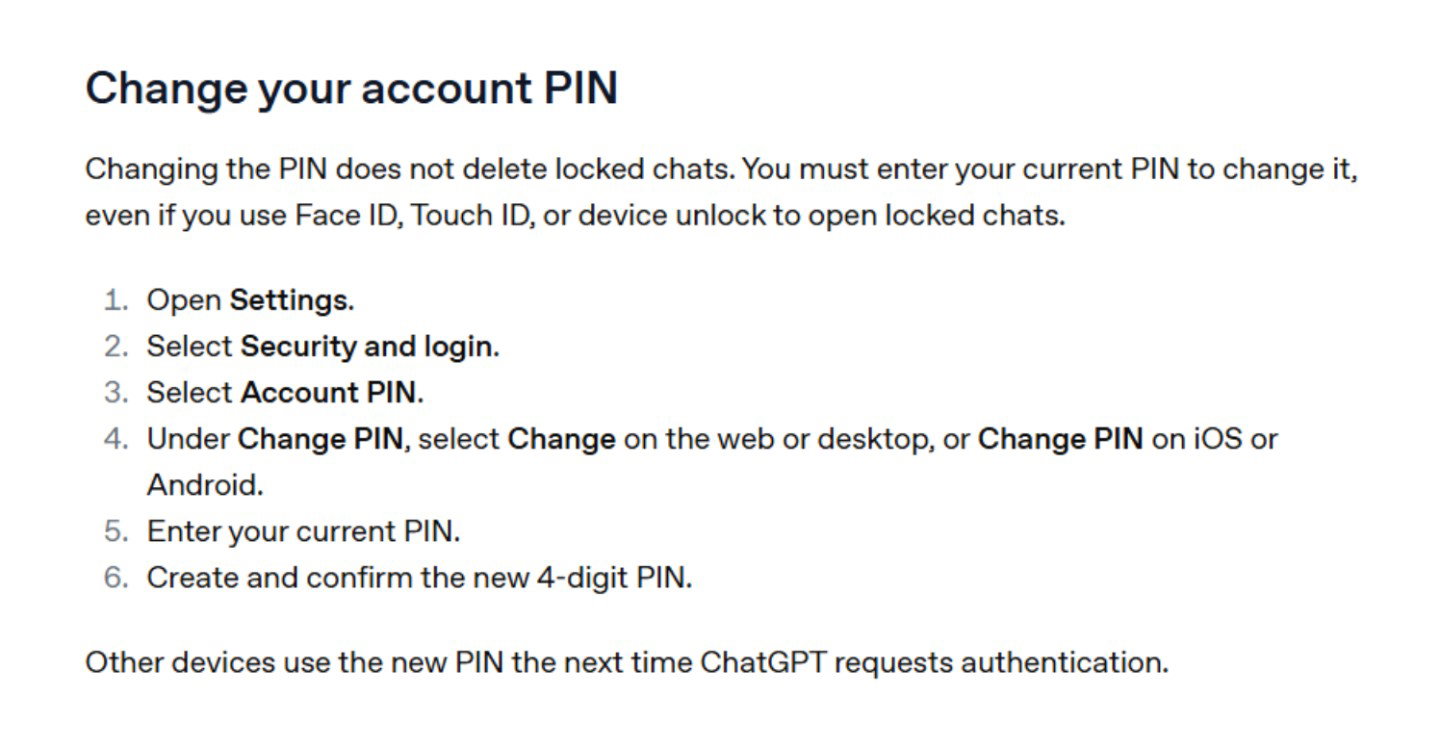
To change a PIN you still know, open Settings > Security and login > Account PIN > Change PIN, enter the current PIN, then create and confirm a new one. Your locked conversations remain intact, and the new PIN works across supported devices.
Forgotten PIN?
You can use Reset PIN from the same settings area, verify your identity, and confirm the warning. But here's the catch: resetting permanently deletes every locked chat, memories stored only within locked chats, and content protected solely by the previous PIN. OpenAI Support cannot recover it.
Simply forgetting your PIN doesn't delete anything; confirming the reset does.
If you still know the old PIN, change it instead. In this case, the difference between change and reset is everything.
Topics For More Insights
The Final Lock And Unlock
Locked Chats makes it easier to keep sensitive conversations away from curious eyes without losing them. The PIN and biometric options are useful, but they protect access on your devices, not every aspect of how data is handled. Check memory settings, shared links, and training preferences too. And remember: lock the diary if you like, but never confuse Reset PIN with Change PIN.
Frequently Asked Questions
Can Someone Still Open A Shared Link After I Lock A Chat?
Yes. Locking an eligible conversation that already has a shared link does not revoke the link. Anyone who has it can still see the content previously shared through that link, although new messages sent while the chat is locked are not added to the shared version. To prevent further access, you must delete the shared link separately. This is an important distinction if you previously shared a conversation and later decided it should be private.
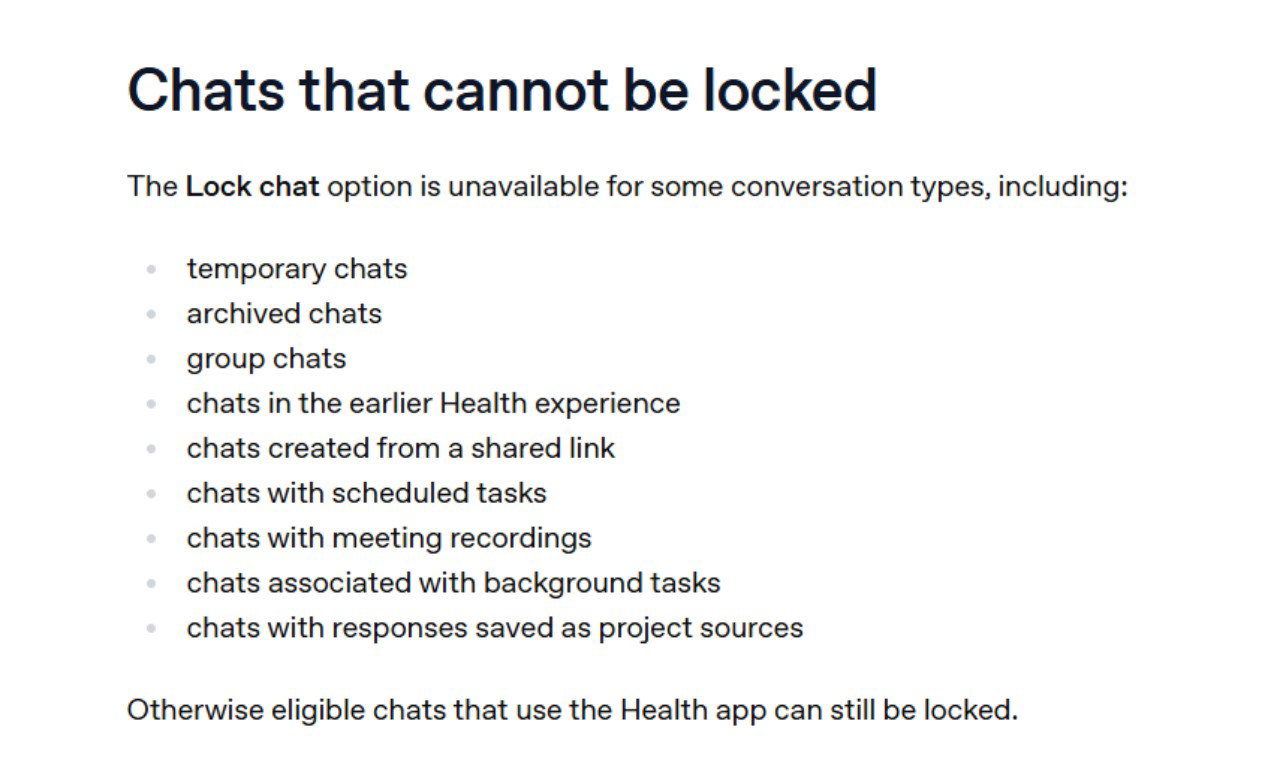
Which Types Of ChatGPT Conversations Cannot Be Locked?
OpenAI excludes Temporary Chats, archived and group chats, chats created from shared links, and conversations with scheduled tasks, meeting recordings, or certain background activities. Some chats connected to an earlier Health experience are also ineligible. You may need to resolve or remove an incompatible feature before locking an otherwise eligible thread. The Lock chat option can also differ across platforms, so an unavailable menu item does not necessarily mean your account lacks the rollout.
Can A ChatGPT Workspace Administrator Unlock My Protected Conversations?
A workspace administrator cannot enter your locked chats by resetting your personal account PIN or unlocking them through the normal chat interface. However, this does not make workplace conversations invisible to organizational oversight. Enterprise and Edu conversations remain subject to retention requirements and applicable compliance logging, including message logs available through OpenAI's Compliance Platform. For confidential workplace material, follow your organization's data-handling rules even when the conversation is locked.
Thu, Oct 22, 2026

Enjoyed what you've read so far? Great news - there's more to explore!
Stay up to date with the latest news, a vast collection of tech articles including introductory guides, product reviews, trends and more, thought-provoking interviews, hottest AI blogs and entertaining tech memes.
Plus, get access to branded insights such as informative white papers, intriguing case studies, in-depth reports, enlightening videos and exciting events and webinars from industry-leading global brands.
Dive into TechDogs' treasure trove today and Know Your World of technology!
Disclaimer - Reference to any specific product, software or entity does not constitute an endorsement or recommendation by TechDogs nor should any data or content published be relied upon. The views expressed by TechDogs' members and guests are their own and their appearance on our site does not imply an endorsement of them or any entity they represent. Views and opinions expressed by TechDogs' Authors are those of the Authors and do not necessarily reflect the view of TechDogs or any of its officials. While we aim to provide valuable and helpful information, some content on TechDogs' site may not have been thoroughly reviewed for every detail or aspect. We encourage users to verify any information independently where necessary.
Loading comments...